
Before you generate
How to choose your two Raindance AI photos
Your two portraits tell Raindance AI who should appear in the selected performance. The reference supplies the scene and movement. Before spending credits, check that both faces are easy to recognize and that each photo is assigned to the intended role.
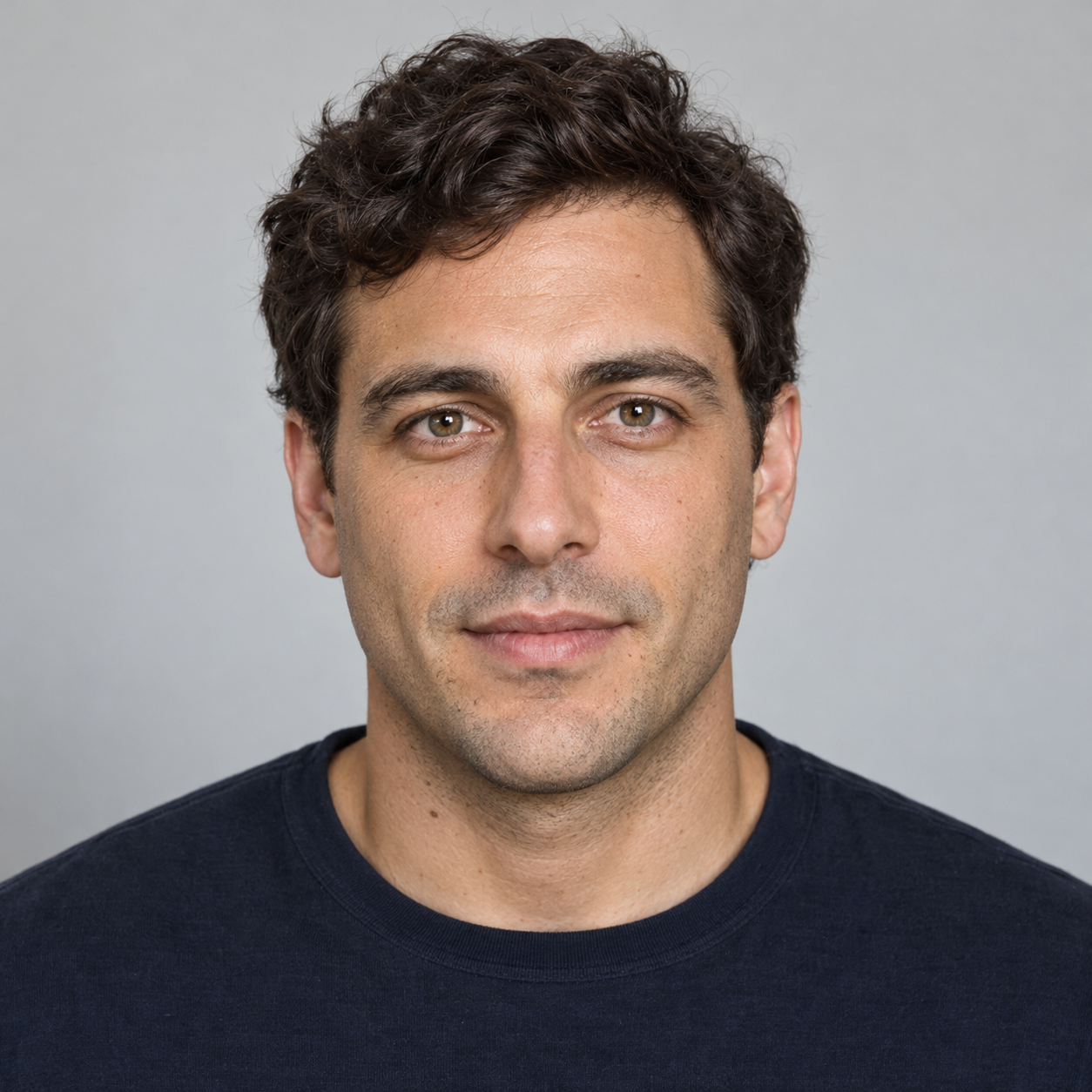
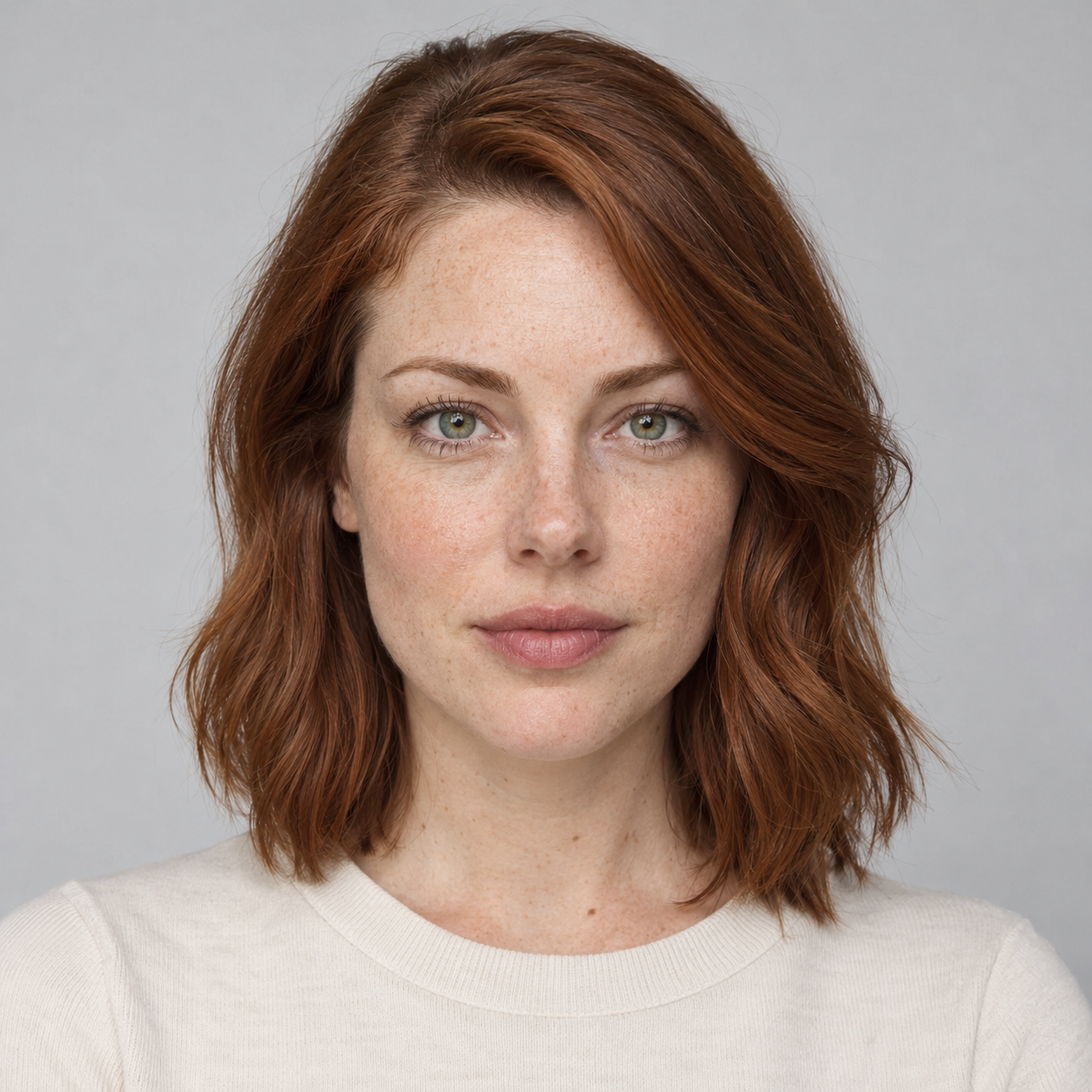
Start with files the studio can accept
Open each photo on your device before uploading it. Check the actual dimensions and file type, especially if it came from a messaging app or a screenshot. A filename ending in .jpg does not turn an unsupported file into a JPEG.
If your phone saved a HEIC image, export a JPEG, PNG or WebP copy. Keep the original in case you need a less compressed version. Enlarging a tiny image can satisfy a pixel count without recovering the facial detail that was missing.
Both images are required. The studio has no combined-photo upload or single-person mode. If you start from a group photo, prepare two separate crops with one visible person each and check their dimensions after cropping.
- Check the format: JPG, PNG or WebP.
- Check the size: up to 10 MB for each file.
- Check both dimensions: at least 300 pixels wide and 300 pixels high.
- Inspect the face at a normal viewing size, not only as a tiny thumbnail.
Choose a recognizable face over an elaborate background
As a practical starting point, choose an evenly lit portrait with visible shoulders, a clear face and little obstruction. A front-facing or gently turned face is easier for you to compare against the output than a distant profile. These are preparation recommendations, not measured success-rate claims.
Avoid sunglasses, hands covering the face, heavy beauty filters and harsh shadows when you have an alternative. If the only available photo is blurry, try obtaining a clearer original before buying another generation. More dramatic lighting is not a substitute for visible facial detail.
You do not need matching photo backgrounds or matching outfits. The fixed prompt asks the model to retain the reference outfits and location while changing the performers’ identities. Uploading a portrait in a particular outfit is not a clothing-control feature.
Assign identities by role, not by screen position
The first upload is the male identity; the second is the female identity. That assignment is intended to stay the same when the performers change sides or the reference cuts to a solo shot. Do not swap photos because a person appears on the left in one shot and the right in another.
Use Swap uploaded photos only to correct a mistaken upload assignment. Before submitting, inspect both upload previews and the selected Part 1, Part 2 or Part 3 summary. A solo section of the reference remains a solo section; the tool does not promise to put both people in every shot.
Use the real examples to decide whether to proceed
The three public samples use the same two fictional adult portraits shown above. Watch the entire selected result, including the final shots, rather than judging only the poster frame. Compare facial features, solo cuts and changes in position. A convincing first frame does not establish identity consistency throughout a clip.
The published 768P samples are 1344 × 768 (7:4), not the requested 16:9. Other results can vary. The sample player restores the selected reference soundtrack; a separate download preserves the raw AI output. These examples show observed results, not a promise that every pair of portraits will behave the same way.
A 768P request uses 160 credits for one part. A new take is another paid request, even when you reuse the same photos. Packs start at $9.90 USD for 320 credits. Decide which part you want before submitting; selecting a sample’s settings does not submit a task.
Check permission before uploading
Use photos you own or have permission to use, including permission from the other person for this kind of AI recreation. The studio asks you to confirm that permission before generation. When sharing the result, make clear that it is an AI-made performance rather than footage of something the people actually did.
If you are unsure about using someone else’s photo, resolve that before uploading. The public demonstration portraits are fictional adults; their availability is not permission to use an unrelated person’s likeness.
Questions before your next step
Can I upload one photo of us together?
The studio requires two separate uploads. Prepare a separate portrait for each role, with only the intended person visible in each image.
Will clearer photos guarantee the same faces in every shot?
No. Clear portraits are a useful starting point, but identity, framing and timing can still vary across AI-generated shots. Review the full result before sharing it.
Do I need to upload the reference video too?
No. The studio provides the reference and fixed prompt. You choose one of the three 10-second parts and upload the two portraits.
Sources & verification
Published by the team behind this tool. Product facts were checked against the current studio and retained sample evidence. Preparation and editing advice is guidance, not a controlled comparison or a guarantee of results.