
After you generate
Raindance AI audio: previews, downloads and missing sound
If a Raindance AI clip plays silently or sounds different from the reference, check the player and the download version before generating again. The reference preview, the delivered MP4 and the raw AI file have different roles.
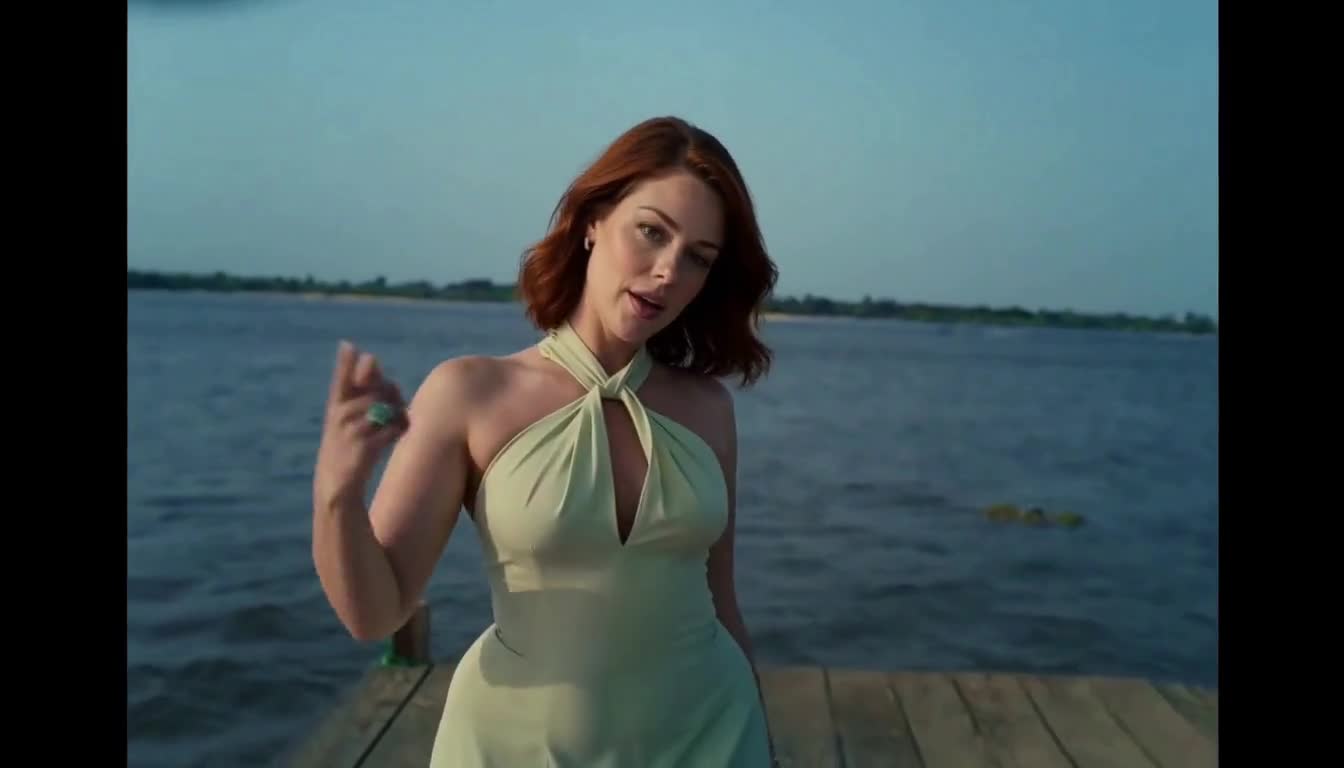
Know which version you are listening to
The studio’s full reference is the source performance, not evidence of a personalized result. Selected part previews play the corresponding 10-second section: Part 1 covers 0–10 seconds, Part 2 covers 10–20, and Part 3 covers 20–30. Those source-relative times identify the template segment, not a guaranteed timestamp in a platform’s music library.
For a completed task, the standard preview and Download MP4 use the reference soundtrack matched to that task’s part. The restoration preserves the generated video frames rather than running the model again. Download AI original is deliberately separate so you can inspect what the provider originally returned.
Playback and downloads restore the selected reference soundtrack after AI generation. The published examples contain that AAC stereo track with unchanged generated video frames. Exact lip-sync and shot timing are not guaranteed; music rights are not included.
If the preview has no sound
Start with playback controls. A muted player, low device volume or audio routed to disconnected headphones can make an audio-bearing file seem silent. Press Play, check the speaker control and verify where your device is sending audio.
Check the selected part as well as the full reference. If one plays correctly and another does not, refresh the page so that you are using the current preview assets. This is a playback check; it does not require a new paid task.
If the issue concerns a completed video, open My Videos and download the standard MP4. Try that saved file in a local video player. Sound in the saved file but not the web player points to a playback issue rather than a reason to pay for another generation.
- Unmute the video and check device volume and audio output.
- Confirm which reference part or completed video is playing.
- Refresh the preview or download the standard MP4 from My Videos.
- Compare the saved file before deciding that generation failed.
If the downloaded audio is missing or different
First check whether you selected Download AI original. That file is not the restored version and may contain different AI-produced sound. Return to My Videos and choose Download MP4 for the version with the selected reference audio.
A file already saved on your device will not change when the website is updated. Download a fresh copy of an older task if you want to check the current restoration. Historical tasks keep their original part assignment, so downloading again should not switch Part 2 to another section.
If restoration cannot complete, the site reports an error instead of quietly handing you a different soundtrack. Retry the download; a retry does not start a new video generation. If it still fails, contact support with the selected part, approximate creation time and the visible error. Do not send passwords, payment credentials or your original photos as a first troubleshooting step.
Original audio and exact lip-sync are different checks
Putting the original soundtrack under a generated clip does not alter the performer’s mouth movements. The model can shift gestures, cuts or facial motion, so audio can be correct while lip-sync is imperfect. Watch the whole clip before judging it from a short section.
The published 768P samples are 10.125 seconds long, while the selected reference clips are 10 seconds. Do not assume every generated cut will land at precisely the same point as the reference. If you assemble all three parts, review the boundaries and audio in your editor; seamless continuity has not been verified.
Another AI take is a new paid request: 160 credits at 768P or 260 at 2K per part. A download or volume adjustment cannot fix inaccurate generated mouth motion, and a new take cannot guarantee exact lip-sync.
Check the soundtrack again before posting
If you add music in a social app, mute or remove the existing soundtrack first so you do not hear two overlapping versions. Listen through the final post preview, not just the file in your editor. Availability of a song in your account or region must be checked in the destination app.
The restored soundtrack is not a music license. TikTok recommends its Commercial Music Library for content that promotes a brand, product or service; its licenses for music outside that library do not cover commercial use. Check the rules for your intended post and choose audio you are allowed to use.
Questions before your next step
Do I need to regenerate an old video to restore its sound?
No new generation is needed for audio restoration. Open the existing task in My Videos and download the standard MP4 again. The source output still needs to be available; if retrieval fails, use the visible error and contact support.
Is the restored soundtrack generated by AI?
It is the audio from the selected reference section, added after video generation. The unprocessed provider output is available separately through Download AI original.
Will the song and mouth movements match exactly?
Exact lip-sync is not guaranteed. Audio restoration preserves the generated video frames, including any differences in gesture or shot timing.
Sources & verification
Published by the team behind this tool. Product facts were checked against the current studio and retained sample evidence. External guidance was reviewed on October 13, 2026. Preparation and editing advice is guidance, not a controlled comparison or a guarantee of results.